
Exporting data with the CSV export
Export your data from Base with the CSV export module. You can then process and filter this data in Microsoft Excel for use in other ways. For example, supplying event data to the makers of the newspaper.
In the Content Hub, you can distribute the data in Plaece.Base in various ways. For example, you can create a PDF export, or export all data via an Excel file.
We recently added a number of new functionalities to the CSV export:
- More data in the export
All possible data is included in the CSV file. Smart filtering in Microsoft Excel allows you to filter and compile all possible exports yourself - (Pre)filtering in Base
Using a number of commonly used filters, you can already make a preliminary selection of the data you wish to export.
Readable category names & IDs
If categories are linked to an item, these are displayed in a column as both ID numbers and human-readable category names.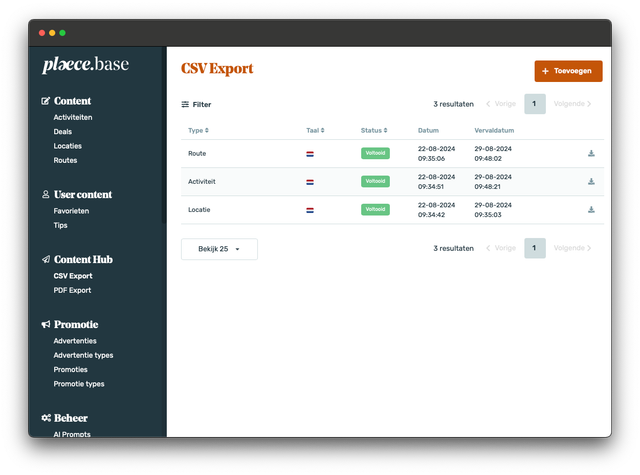
Example of overview of exports made in Base
Create your own CSV export
Screenshot of the creation of a new export in Base
In Base, navigate to: Content Hub > CSV export. Here you can create a new export. When creating a new export, you can choose from the following export types:
- Type
What type of data do you want to export (we currently support Locations, Activities and Routes). - Language
You can export all data for each language. - Recipient
All created exports can be found in Base. If you enter your e-mail address, we will send you an e-mail as soon as the export is ready (including download link).
Set up export filters in Base
Using a number of filters, you can already make a pre-selection (so you don't have to do that in Microsoft Excel anymore). The filters we have added are:
- Organisations
- Applications
- Categories
- Tags
- Markers
- Areas
Psst...do you remember the difference between markers, tags and categories? To be sure, read the following article: Categories, tags and markers... What is the difference and what can you do with them?
Set a date range for event exports
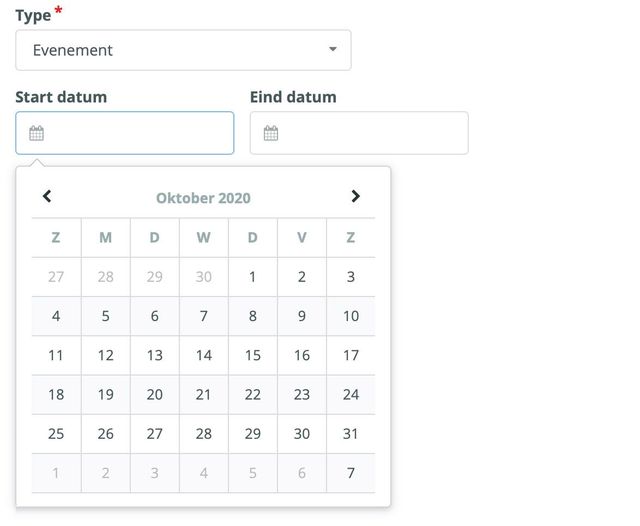
When creating an event export, you have the option to set a date range. You will then be asked to set a start and end date. If you set a date range, only the events that take place within this date range will be exported.
Filtering data yourself in Microsoft Excel
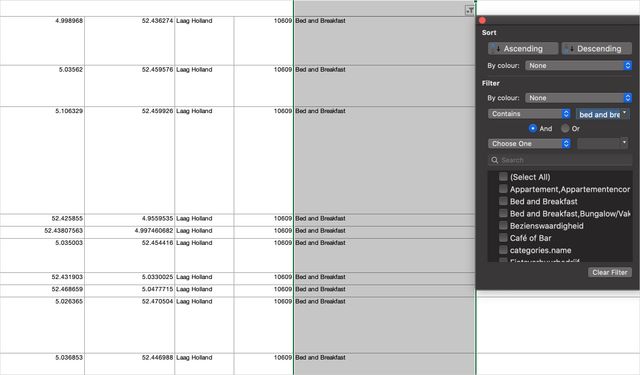
Using filters, you can easily make your own selections from data in Microsoft Excel (you then use the raw data from Base). In the example above, you can see a filtering on the category "Bed and Breakfast". You could have done this by pre-filtering in Base, but you can also easily do this afterwards in Microsoft Excel. So you can decide for yourself how you want to make the export and where you want to do the filtering.
Would you like to create your own exports?
Don't have an export module in the Base yet? Contact us for more information via support@insiders.nl. Do you have a CSV export module? Then these changes will automatically become available with the next update of Base.