
Quiz feature
You like to ask questions to your users or visitors. This could be in the form of a kind of e-learning, quiz or survey. We have something for that: the Question/Answer module. Create your own question/answer combinations and publish them on your website. Set the number of points per given answer and view statistics of the completed questionnaires.
Content:
- How to use the Quiz feature
- The basics: create a lesson or quiz
- Set a score range for the different outcomes
- Add questions and answers to your lesson or quiz
- View results and statistics of all lessons or quizzes
- The Quiz feature in brief
How to use the Quiz feature
The possibilities are endless, but consider the following:
- Train your tour guides (e-learning)
Your guides and hostesses are the city’s calling card. But do they actually know everything they should know? Introduce them to all the information they need to have at their fingertips in a fun way. Perhaps you could even award them a certificate as a reward. - Test your guests’ knowledge (quiz)
What do your (potential) guests actually know about your destination? Ask them a few questions to find out! Reward them with a little treat or a compliment if they already know a lot about your destination. Also, take the opportunity to teach your guests something new… something they might not have known yet.
The basics: create a lesson or quiz
What you call it is up to you, a lesson or a quiz it doesn't matter to us. What we do want to know is what your lesson is called and what your lesson is about. You create a new page type in the CMS: questionnaire. At that point, all underlying pages in the page tree become part of the quiz or lesson. All questions on those pages therefore belong to this quiz/lesson.
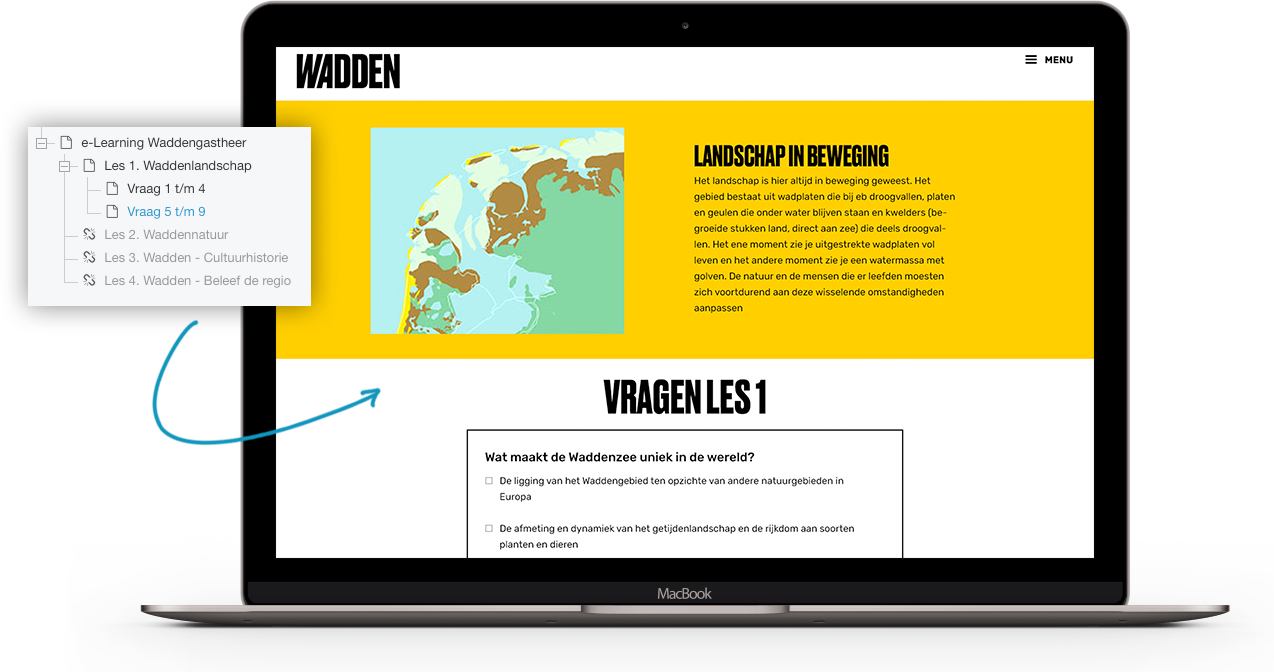
Set a score range for the different outcomes
A quiz wouldn't be a quiz if there were an outcome. You can decide what the outcomes look like. Each question scores a certain number of points (depending on the number of points set for the answers).
For each installation, we look together at what "outcomes" there are. This can be simple success and failure. But exotic variants such as bronze, silver, gold, etc., are also possible.
You determine the outcomes by setting a score range You set the minimum and maximum number of points to which you want to relate the outcome.
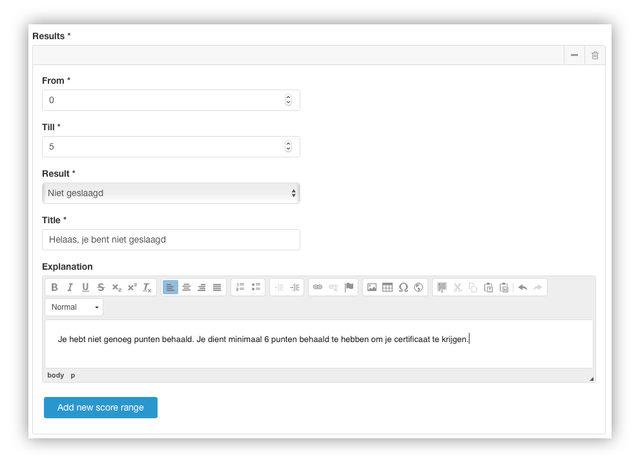
You can create multiple score ranges yourself, take a look at this video.
Add questions and answers to your lesson or quiz
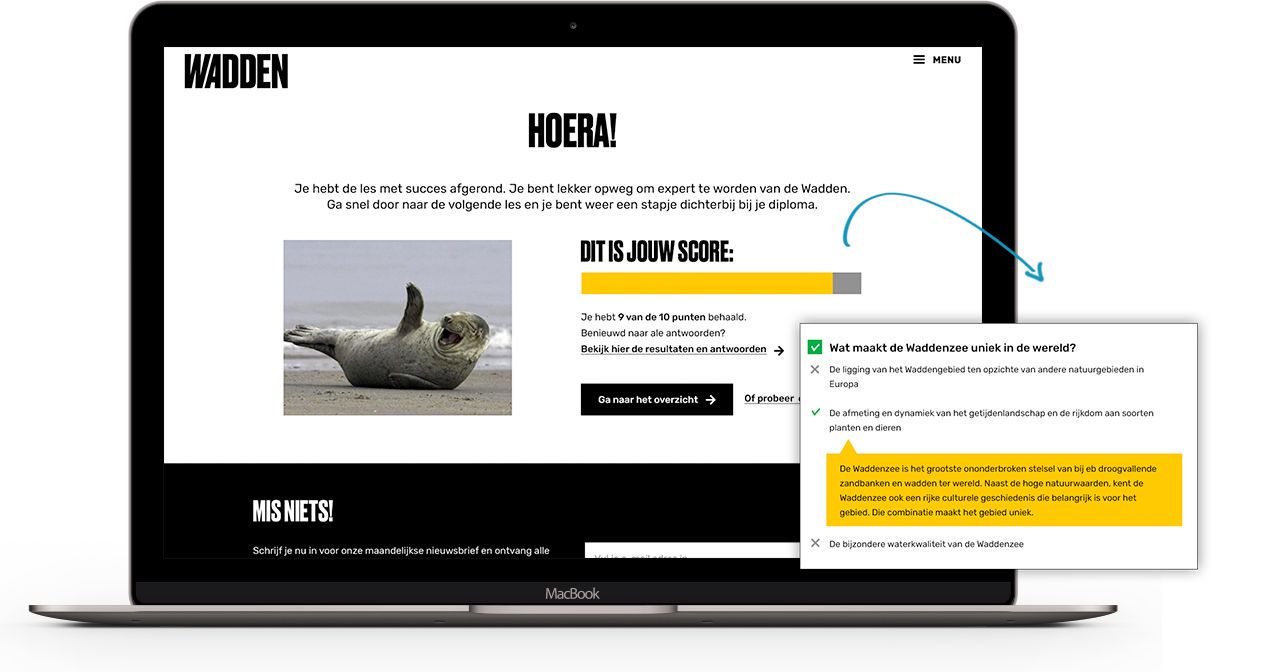
You can add unlimited questions and answers yourself. We currently have the "Multiple Choice" question type available. You can indicate which answer is correct and how many points you can earn per answer. Per answer, you can optionally provide a textual explanation that can be displayed on the results page.
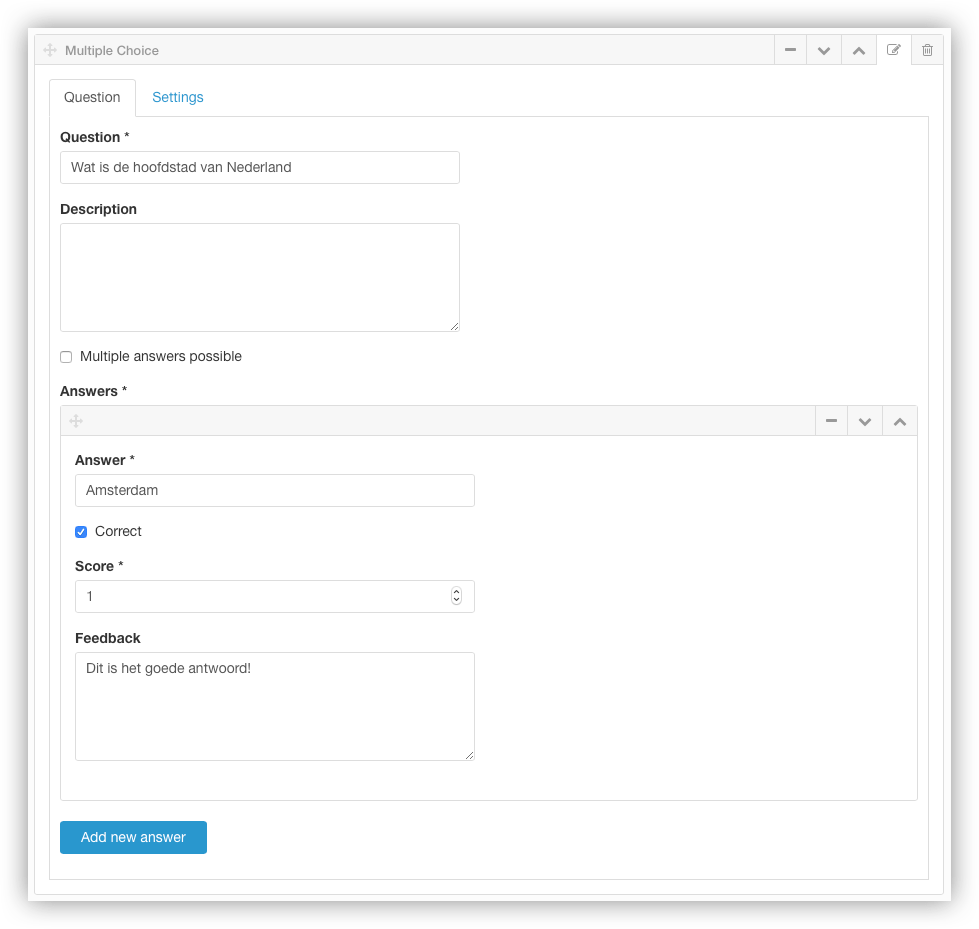
See how you can add questions and answers here .
View results and statistics of all lessons or quizzes
As soon as a visitor completes the questionnaire, he/she immediately sees the results achieved.
As the website manager, you also get extensive insights into who succeeded or failed and how the questionnaires were completed. All these results can be exported as an Excel file.
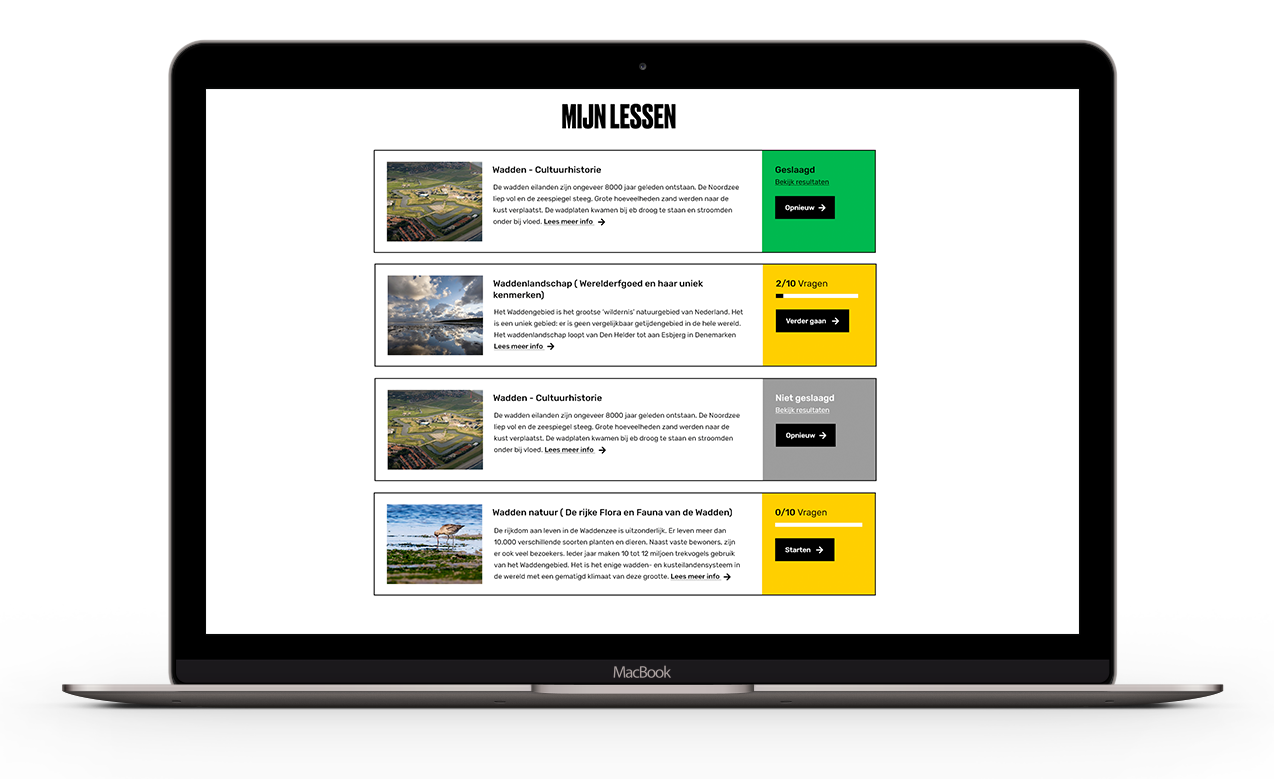
As a user of the website, you can also see which lessons you have all made, what your scores are and which lessons you can still make. This overview can be viewed, if you have an account on the website, in your own personal dashboard:
The Quiz feature in brief:
- Create an unlimited number of 'lessons
- Create an unlimited number of questions
- Configure "outcomes" yourself
- Enable multiple "results" based on the number of points achieved
- Set the number of points per given answer