
Set up your own overview filters (per page)
Your website contains pages where you list the best things about your destination. For example: entrepreneurs, locations, events, routes or packages. These listings can be filtered by visitors to your website. A refinement can be based on area or city, theme or through a search. Until now, these filters were automatically available on every page. With the new function of our filter box, you as administrator can choose which filters you make available (per page) at the frontend.
Decide which filters you offer your visitor
Now, when you create an overview as a website administrator, you automatically get a search bar and any other filters (e.g. area filter or theme filters). In some cases, you might not want that. We've now created something for that. You can now decide which filters you want to show (or not) for your visitors.
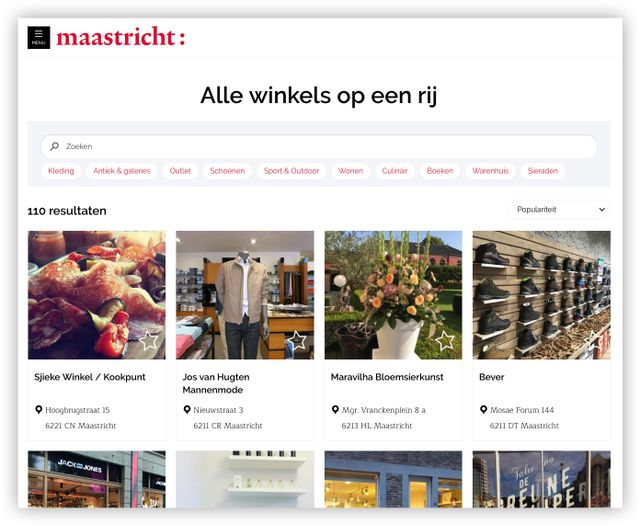
Example of an overview of entrepreneurs on www.bezoekmaastricht.nl, with filter by themes
This is how you create an overview
In the Content Management System (CMS), you can compile your own overview of items from plaece.base. These can be entrepreneurs (locations, events, routes, packages, etc). You have the option of retrieving a certain set of data from plaece.base. You can do this by choosing a type, filter by "category" and any "tags" and "markers". Then you can also choose to retrieve only items from a certain area, or based on a set promotion. All these filters ensure that only THOSE items are shown on the website.
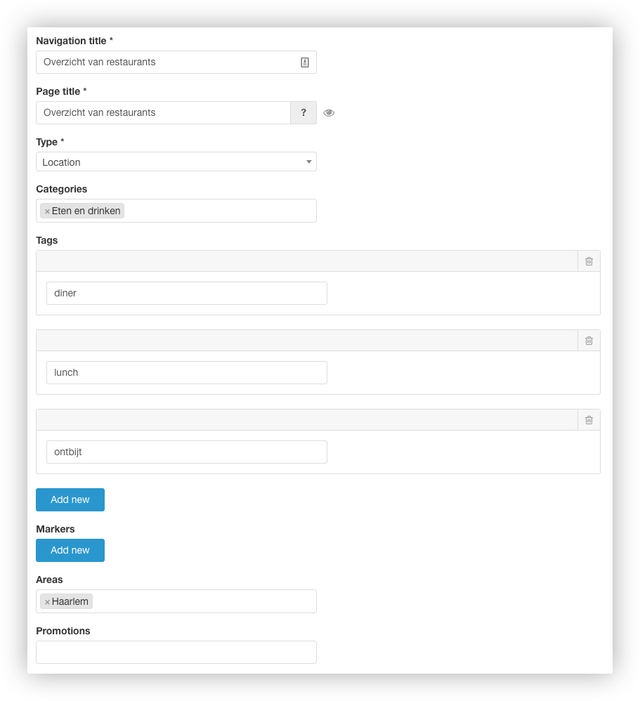
Example of compiling an overview of restaurants
Set up filters for your visitors now
We have now made it possible for website managers to decide which filters they want to offer to their visitors. Per page, you can now decide which filters you do (or do not) make available to your visitors.
In the Content Management System, you can switch filters on and off by means of checkboxes. With the keyword filter, you can even specify which keywords can be filtered.
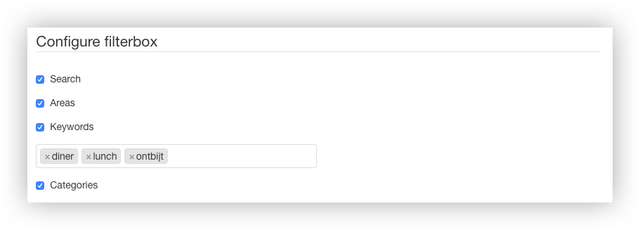
Example of filter settings in the CMS
Available filter options
You have specific filtering options per "Type". For events, you have the option of adding a date filter, and for itineraries you can choose a length filter.
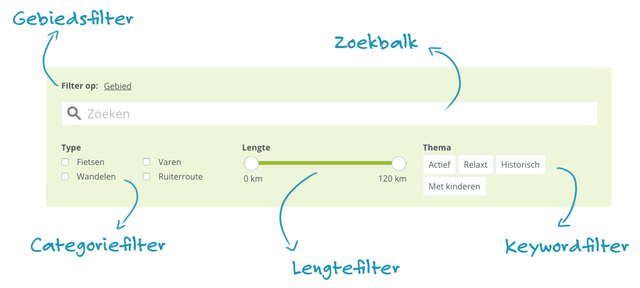
In the example above, you can see an example of the filter options on a page where routes are shown. Together with a number of route partners, we are working on a number of further developments. In this case, these are the filter options on "length of a route" and "type of route". These filter options are initially only available exclusively to participating route partners. At a later stage, these additional filtering options will also become available to all other Plaece partners.
- Area filter (optional)
If the website is equipped with an area filter (paid upgrade), this can be configured on a per-page basis. - Search bar
The search bar is available on every website, including all overview pages, but may not be desirable on every page. You can now easily disable it on a per-page basis. - Category filter (optional)
Based on the filters set, the categories can also be displayed directly as a filtering option on the front end (this can also be configured on a per-page basis). This allows you to offer website visitors the option to quickly choose between (for example) different types of routes, such as cycling, walking, boating, etc. - Distance filter (optional)
For routes, you can offer users the option to filter routes by length. If a visitor is looking for a walking route of up to 10 kilometres, they can do so using the length filter. The visitor can then also choose to sort the results by ‘nearby’ using the GPS sorting function. - Keyword filter
As an administrator, you can create your own ‘keyword filters’. These can be a combination of categories, tags and markers. This allows you to create ‘themes’ that are entirely of your own design. - Date filter
For events, you have the option to offer visitors a date filter. This allows visitors to filter by ‘today, tomorrow, this weekend and a specific date’.