
UPDATE: Easier management of interactive maps
The interactive map on your website is now easier to manage. Thanks to a number of optimisations, you can now set up exactly what you want.
- Set up multiple maps on your website
- Choose exactly which data you want to show on the map
- Decide which filters you want to offer your visitor
You can do this with the interactive map
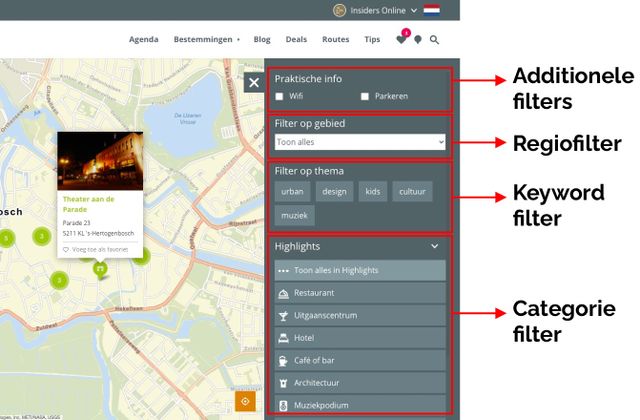
- Additional filters
You can add a number of checkboxes that allow users to display items on the map. These checkboxes are completely separate from the dataset you originally intend to load. For example: suppose you only want to load catering establishments onto the map, but still want to be able to tick a box to see if there are any car parks nearby? In that case, the additional filters are the way to go. - Region filter
By adding a region or area filter, visitors can immediately view what’s on offer in the region they select from the drop-down menu. The map automatically zooms in on the selected area. - Keyword filter
Are you looking for a thematic filter? If so, you can use the keyword filters. You can set these filters up within the CMS itself, based on a group of categories, markers and/or tags. You can do this under Modules > Base Keywords. - Category filter
Using‘Base Categories’, you can offer visitors a number of practical main and sub-categories via a drop-down menu to display on the map. Examples include accommodation, food & drink, or, in even greater detail: hotel, bed and breakfast, café or restaurant.
PLEASE NOTE: Not all options are available by default. Some options are add-ons to the interactive map that can be purchased separately.
This is how setting up your interactive map works
In the CMS, you can create a new page of the "Base Map" type. At that moment, you get special settings for your interactive map.
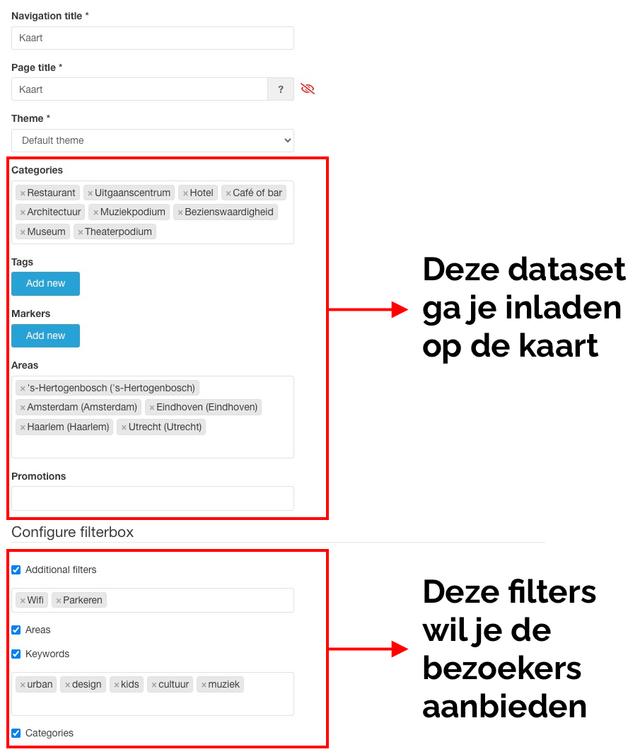
In the top section, you can decide which data you want to load onto the map. You can choose which categories, tags/markers or areas to load. You can even create a map with only items that have a specific promotion. Data that does NOT meet any of these characteristics will therefore NOT be shown on the map.
In the bottom section (Configure filter box), you can determine which filters are available to the visitor on the map. If you tick one of these options, ALL set options from the top section are made available as filter options.
"Additional filtersand keywordsare separate from this. You can add these yourself and decide exactly which filters you want to add.
Bonus tip: placing multiple interactive maps on your website
With the new set-up options, it is also possible to place several interactive maps on your website, each with its own layout. So you can create specific subject (or theme) maps, each with their own data and filters! By using a theme, the maps can even look different.
Set up base keywords
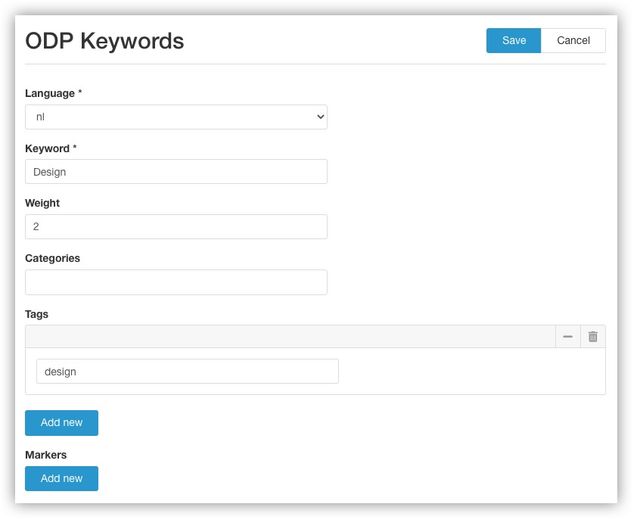
By using "Base Keywords", you can decide for yourself how to filter data. How exactly does that work? You can enter data in Base (locations, events, etc.). You can categorise this data by linking categories, tags and markers to it(Read more about the difference between categories, tags and markers). Your data is now categorised in a uniform way. This also makes it very easy to exchange data. But on your website, you might want to use slightly different names, or offer a bundle of categories as a filter. You can use the "Base Keywords" for that.
Set Base Categories
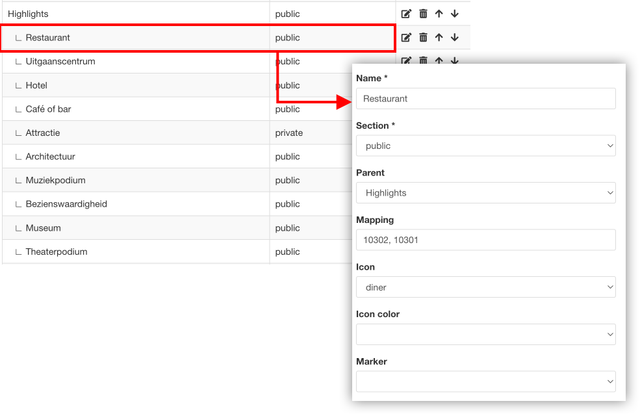
In Base, you can categorise your data. You can also use these categories on the website. The categories in Base are standardised and the same for everyone. On the website, you may want to use a different name or combine several subcategories under one name. Then you can use "Base Categories" for this. In the example below, you can see how the category "Restaurant" consists of several categories in the Base. Within "Base Categories" you can create different sections. For the interactive map, you use the sections "public" and "private".
- Public: These are shown in the "Category filters".
- Private: These are shown under 'Additional filters
Need help setting up your interactive map?
Perhaps not all options are immediately available to you and your website needs to be updated. Any questions? We are happy to help: support@insiders.nl.